If you’re having trouble importing special characters, it could be due to a WLATIN encoding setting.
What’s the Problem
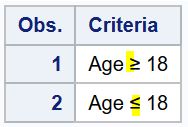
With WLATIN1 encoding, characters such as greater than or equal to are not imported. They are transformed into a non-printable 1A character (hexadecimal value) to indicate that the characters were substituted.
A warning is displayed in the log:
WARNING: Some character data was lost during transcoding in column: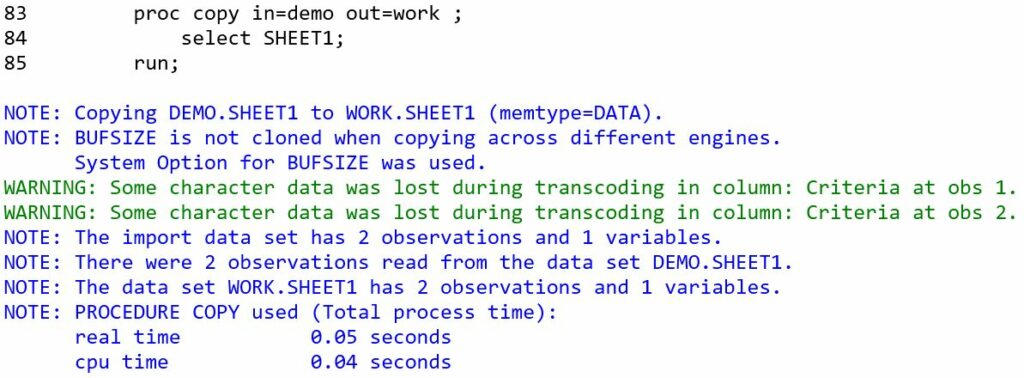
UTF-8 encoding eliminates this problem.
2. Identify the Current Encoding
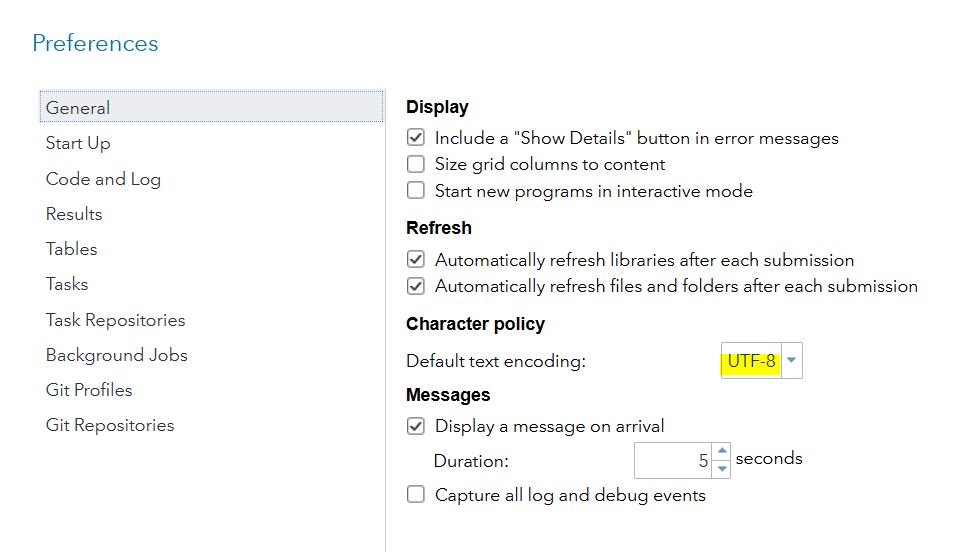
2.1 Preferences Setting of SAS® Studio Does Not Answer the Question
In SAS Studio’s preferences, the default text encoding is not a reliable piece of information when it comes to SAS® system encoding.
2.2 Checking the SAS® System Encoding
Display the value of the global option encoding.
proc options option=encoding;
run;
2.3 Checking the Encoding of the Dataset
Once the dataset is created, it is possible to check the encoding applied to the data.
In this example, the dataset sheet1 is created from the spreadsheet of the same name available in the file Book1.xlsx imported with the xlsx engine.
ods select Attributes;
proc contents data=sheet1;
run;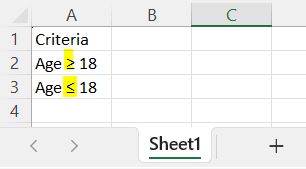
3. Changing the Encoding to UTF-8
Explanations on how to change the encoding under Windows and Unix are available at this address :
https://support.sas.com/kb/51/586.html
Here’s what I did under Windows.
- Locate the file sasv9.cfg in the directory: C:\Program Files\SASHome\SASFoundation\9.4
- Copy the file
- Rename the file to sasv9_old.cfg, so that you have a copy available to go back to the initial configuration in the event of a problem.
- Move the copy of the file to a location with write access for subsequent editing.
- Change the path given in the file to: C:\Program Files\SASHome\SASFoundation\9.4\nls\u8\sasv9.cfg
- Move back the sasv9.cfg file to its original location
- Reopen the software to take into account the changes
Leave a Reply