
Here are a few tips for renewing your Altair SLC 2025 (Community Edition) license and upgrading to RapidMiner SLC 2026. Please note that Siemens no longer offers the Community Edition. Companies now only have access to a two-week trial license. A student license has been introduced.
In this post, you’ll also find some information about a previous situation: how to renew your Community license and upgrade from Altair SLC 2024 to Altair SLC 2025.
1. From Altair SLC 2025 to Rapidminer SLC 2026
Connect to AltairOne.com
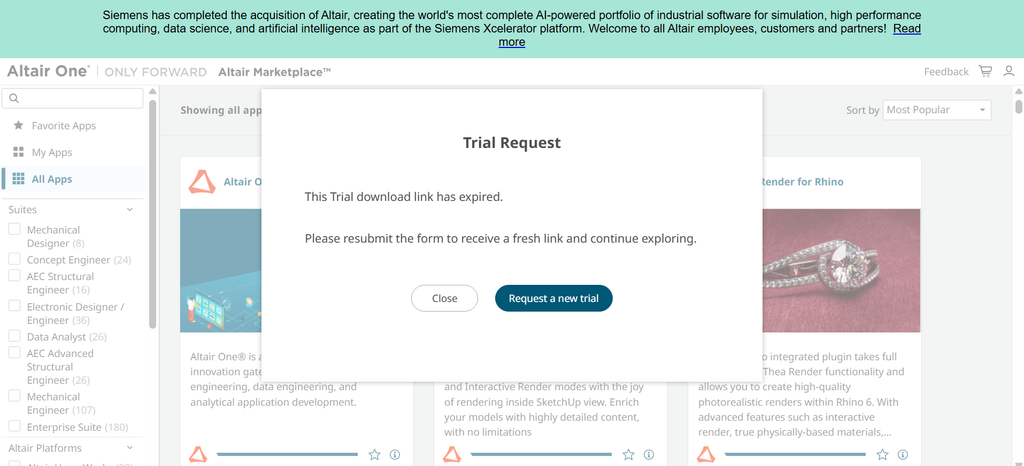
If you click on the link to download the software on your original email, you get his window.
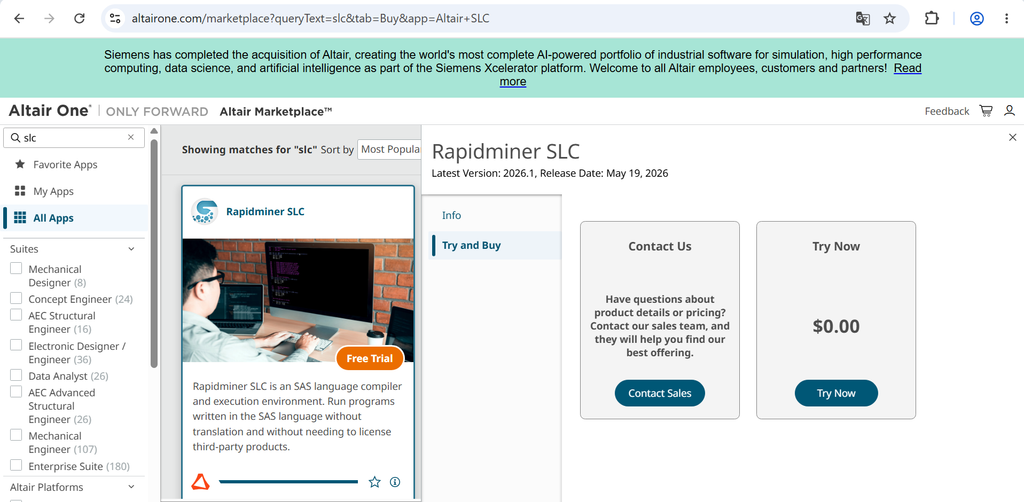
If you search for SLC, you should find Rapidminer SLC with the option to try for free.
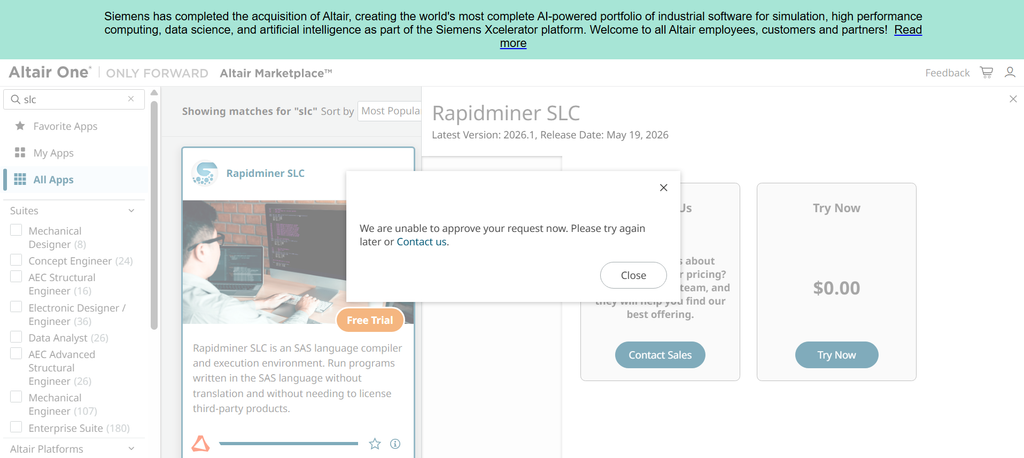
When I try to do it, I get an error message:
I tried on the next day and it worked.
I receive an email with the licence but… it is only available for 2 weeks (and 50 users !!!).

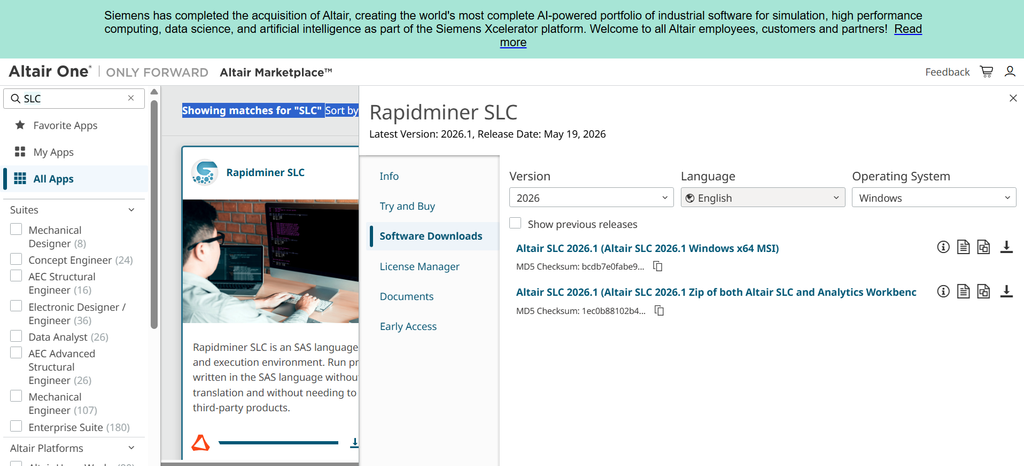
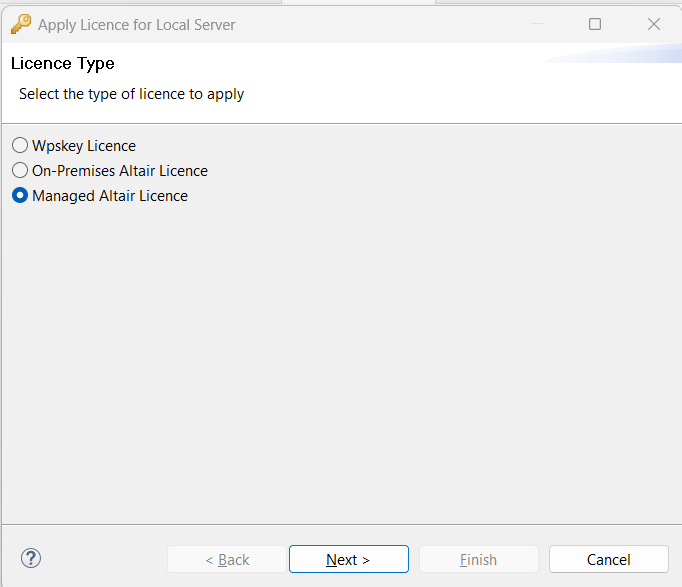
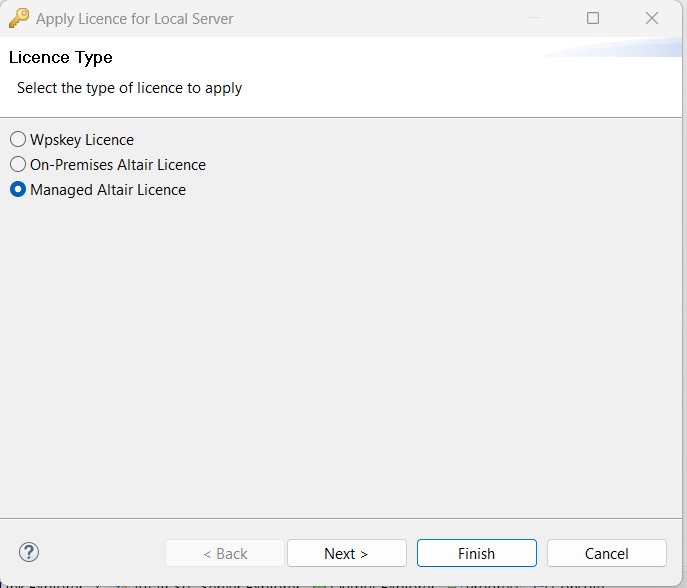
Next open your Altair/Rapidminer Workbench and select “Managed Altair Licence” :
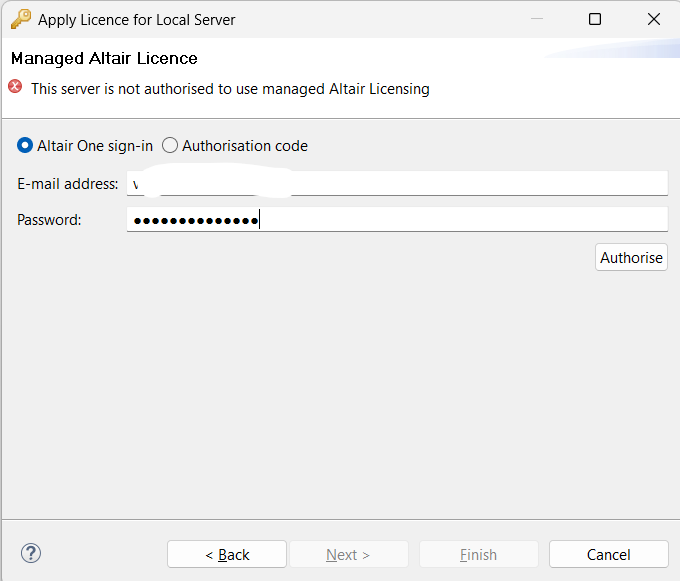
Sign in with your Altair One E-mail address and password and click on “Authorise”.
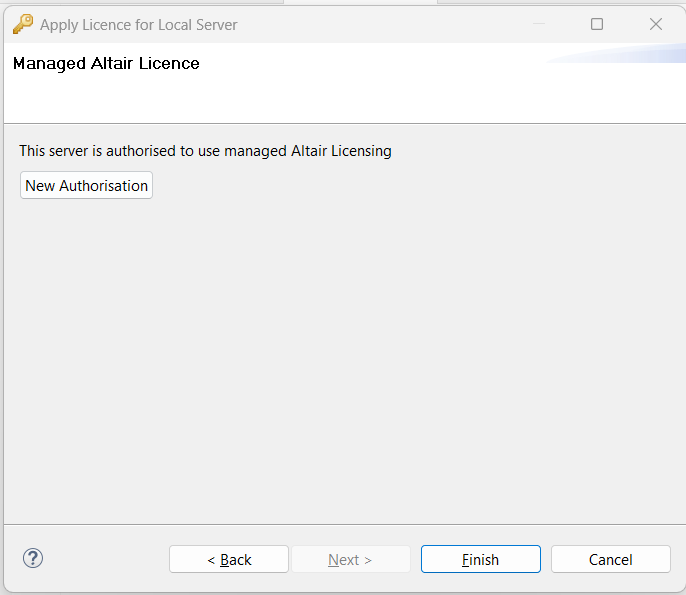
Click on “Finish”.
So there is no more community edition. One person company can not get the same conditions as students. Here are the details for the student licence:
2. From Altair SLC 2024 to Altair SLC 2025
Description of the Problem and Attempts to Solved It
On this forum, you’ll find people who have installed Altair SLC 2024 using the Community Edition licence, which offers one year’s free use.
To renew their licence, they uninstalled Altair SLC 2024 and Altair Workbench 2024 before installing Altair SLC 2025 and Altair Workbench 2025.
They may have deleted files from the 2024 version. For example, they may have taken care to delete all the setinit files:
- C:\Users\<…>\Local Settings\Application Data\Altair
- C:\Users\<…>\AppData\Local\Altair
- C:\ProgramData\Altair\SLC\5
The installation went smoothly, but the licence still needed to be activated.
They may have tried this:
- Press Windows+R to open the Command Prompt.
- Type ‘cmd’ into the text box.
- Type ‘C:\Program Files\Altair\SLC\2025\bin\wps’ -personal
- Launch Altair Workbench
But an error message then informed them that no licences were available.
Error Message in the Altair Workbench Interface
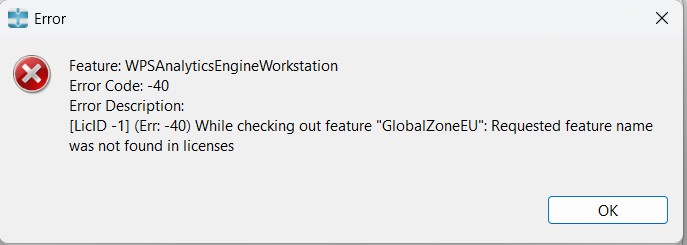
The error message looks like this:
Error Code: -40
Error Description: [LicID -1] (Err: -40) While checking out feature “GlobalZoneEU”: Requested feature name was not found in licenses.
The Solution that Worked for Me
I’ve retrieved my old email with the link to my old account: myaccount.worldprogramming.com/my-account/license-requests
Once logged in, I was able to request a licence extension and download the WPSKey file. I was then able to import the key into the Altair Workbench application.
See Also
- Rapidminer Series (1/5): Is it Possible to Program in SAS Without Using a SAS Institute Solution?
- Rapidminer Series (2/5): Is it Possible to Install Rapidminer SLC for Free to Program in SAS?
- Rapidminer Series (3/5): Renewing the Altair SLC (Community Edition) License
- RapidMiner Series (4/5): Resources for Getting Started with RapidMiner Analytics Workbench (Guide to Download)
- Rapidminer Series (5/5): 6 Things to Know Before Migrating Your SAS Programs to Rapidminer Solution
Leave a Reply